How to send a link to yourself on iPhone (and read it on another device)
Published · 5 min read
The quickest way to send a link to yourself on iPhone is the share sheet: tap Share, choose Messages, type your own name or number in the To field, and send. The link then arrives on every Apple device signed in to the same Apple Account with Messages turned on.
That works, but a link sent to yourself is easy to lose in a chat thread. This guide covers the main options, when each one fits, and what to do when you want the link stored rather than just delivered. Menu names can differ slightly between iOS versions.
What is the fastest way to send a link to myself?
- 1Open the page and tap the Share button (in some apps, the three dots or an arrow, then Share).
- 2Tap Messages in the row of apps. If it is not there, scroll the row to the end and tap More.
- 3In the To field, type your own name, phone number or Apple Account email, and pick the entry that is you.
- 4Tap the send arrow. The message shows up on your other devices that use the same Apple Account with Messages turned on.
If your own name does not appear as a suggestion, type the full phone number or email address that your Apple Account uses for Messages. Sending to yourself works with iMessage; it can behave differently if you only have SMS.
Which method should I use?
| Method | Good for | Watch out for |
|---|---|---|
| Messages to yourself | One link you want on another device now | Links pile up in one thread and are hard to search later |
| Mail to yourself | A link you want on a computer or a non-Apple device | Slower, and it fills your inbox |
| Notes | Several links in one place, with your own words | A long note gets hard to scan; it is not made for links |
| AirDrop | A link you want on a nearby Mac, iPad or iPhone right now | Both devices must be close and set up to receive |
| Safari tabs from other devices | A page you already have open in Safari | It is tied to open tabs, so closing the tab ends the trail |
How do I send a link to myself by email?
- 1Tap Share, then Mail.
- 2Put your own email address in the To field and add a short subject that says what the link is.
- 3Send it, then open it from any device or browser where you read that mailbox.
Email is the choice when the other device is not an Apple device, such as a work computer or an Android phone. The cost is clutter: a subject like “read this” is useless in a month, so write something you can search for.
How do I use Notes to keep links?
Notes accepts links from the share sheet, and with iCloud turned on for Notes the note appears on your other devices. A single note called “Links to read” is fine for a handful of links.
- Tap Share, then Notes, and choose the note to add the link to.
- Add a line of your own above the link, such as why you saved it. You will not remember otherwise.
- Use one note per topic, not one note for everything.
Notes is a general tool, so there is no read or unread state and no tag for a link. The comparison in saving links in Apple Notes vs Linkeeper shows where that starts to matter.
How do I send a page to my Mac or iPad?
- AirDrop: tap Share, then AirDrop, and choose the nearby device. If it is one of your own devices signed in to your Apple Account, it can receive the link without a prompt.
- Handoff and Universal Clipboard: with Handoff turned on and the devices near each other, signed in to the same Apple Account with Bluetooth and Wi-Fi on, you can copy a link on the iPhone and paste it on the Mac. It is not a record; the next thing you copy replaces it. See how to find a link you copied on iPhone.
- Safari tabs: with Safari turned on in iCloud, pages open on your iPhone appear in the tab overview on your other Apple devices, under tabs from your other devices.
Why is sending links to myself not enough?
Delivery is not storage. After a week, the Messages thread with yourself holds a mix of links, photos and reminders in time order, and the only way to find an old link is to scroll or search a half-remembered word. Mail and Notes have the same problem in a different shape.
If you send yourself more than a few links a week, it helps to save them somewhere built for links: a list you can search, mark as read, tag and clean up. How to find a saved link on iPhone covers searching what you already have.
What if I want the link kept, not just delivered?
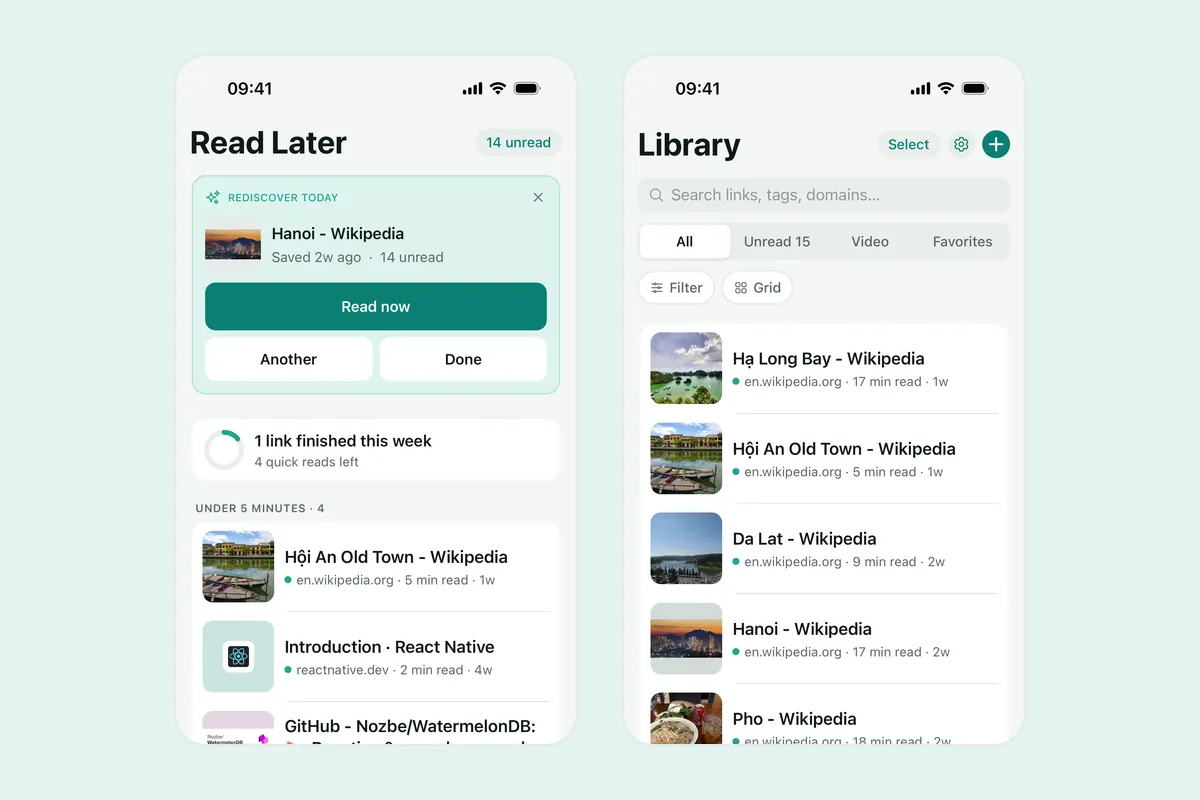
Linkeeper is an iPhone and iPad app that saves links from any app in one tap and keeps them in one organized, searchable library. You choose Linkeeper in the share sheet, and the link is saved without leaving the app you are in. If it is missing from the row, add it to the share sheet.
- The title, description and thumbnail are filled in for you, so a saved link is recognisable later.
- Tags and collections group links by topic; one link can belong to more than one.
- Unread, Favorites and Archive work as a reading queue you can clean up.
- Search works offline. Links are stored on your iPhone first, with no account needed.
- Syncing to another device is optional and needs signing in with Apple or Google. Linkeeper runs on iPhone and iPad; there is no Mac or web version, so for a computer, use Messages, Mail or AirDrop.
Frequently asked questions
- Can I text myself a link on iPhone?
- Yes. Tap Share, choose Messages, type your own name, number or Apple Account email in the To field and send. The message appears on your other Apple devices with Messages turned on.
- How do I send a link from my iPhone to my Mac?
- Use AirDrop from the share sheet, send it to yourself in Messages, or copy the link and paste it on the Mac with Handoff and Universal Clipboard turned on. Safari tabs from your other devices also show pages open on the iPhone when Safari is turned on in iCloud.
- Why is my own name not showing in Messages?
- Type the full phone number or email address that your Apple Account uses for Messages, and choose the entry that is you. Messaging yourself works best with iMessage turned on.
- Is there a better way than sending links to myself?
- If you send many links, keep them in a list you can search instead of a chat thread. An app that appears in the share sheet, such as Linkeeper, saves links from any app into one library.
- Does Linkeeper need an account?
- No. Links, notes, tags and collections are stored on your iPhone first. Signing in with Apple or Google is optional and only used to sync your library between devices.